How does it work?
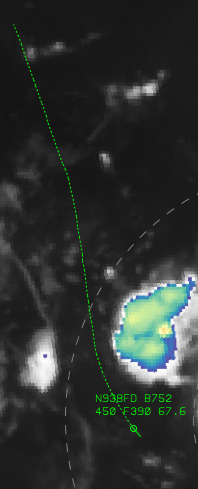
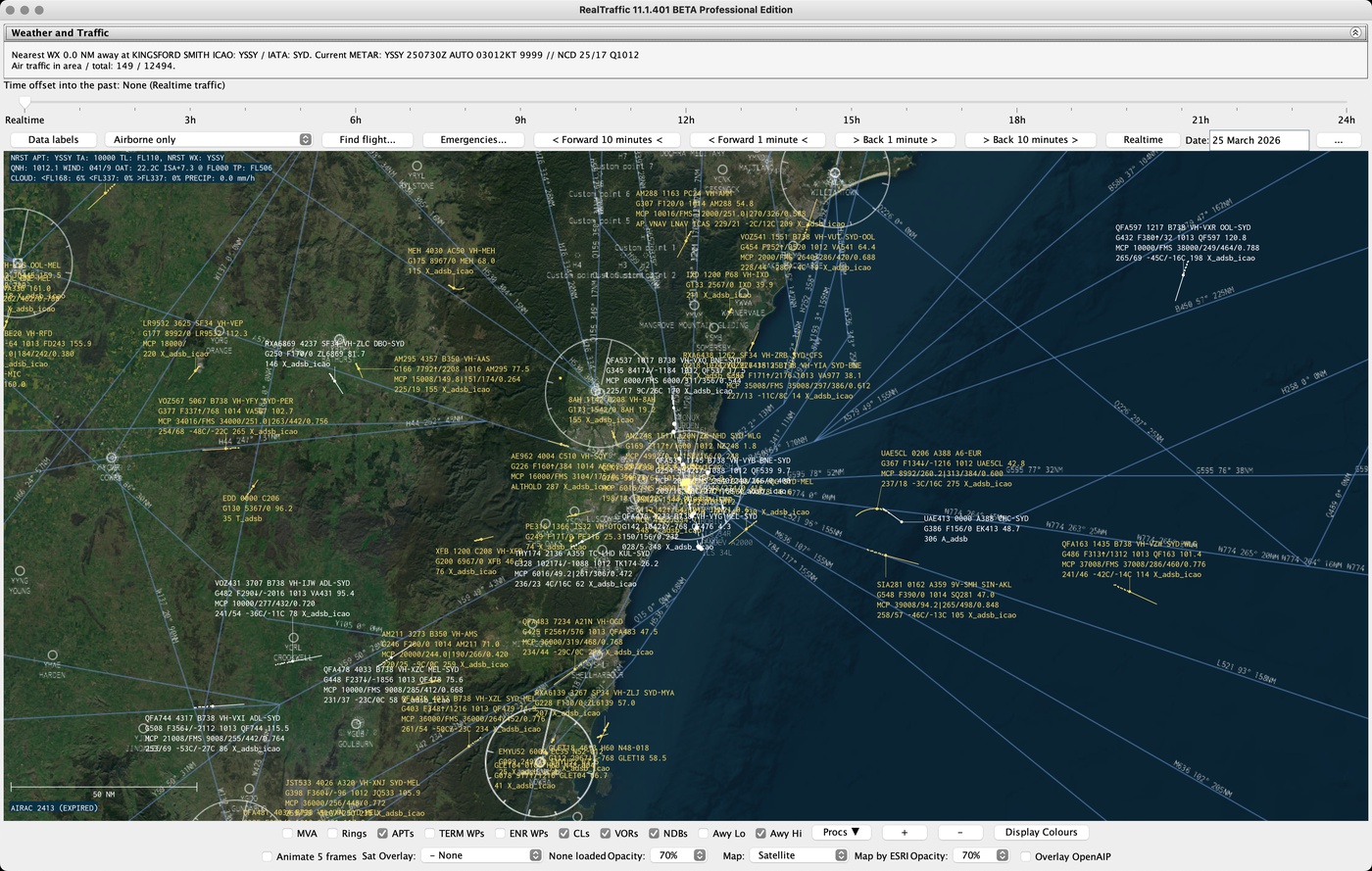
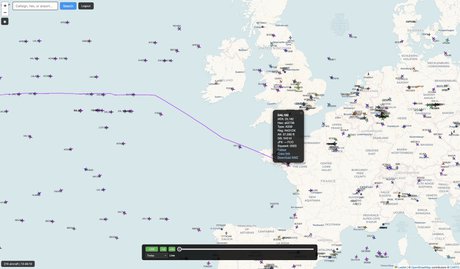
RealTraffic combines its own worldwide network of ADS-B feeder stations with data from multiple international ADS-B and multilateration networks to obtain information about other airplanes near the position of your (simulated) aircraft — in realtime, live!
And with the live map, 3D cockpit view and the flight analysis workbench, RealTraffic offers flight tracking, analysis and visualisation like no other.
Depending on which simulator you are flying, it then injects this traffic so you can fly with it, or follow it.
RealTraffic also provides global coverage of real-time high resolution satellite images, giving you the real world flying experience even in the remotest corners of the planet.
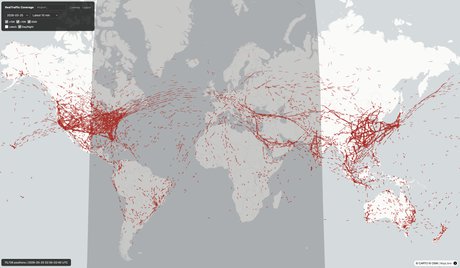
Create an account (it's free) to check the global traffic coverage.
Supported Flight Simulators
| Simulator | Details |
|---|---|
| MSFS / P3D | Fully supported using the PSXT app. PSXT Quickstart Guide |
| Aerowinx PSX | Fully supported natively. Up to 7 aircraft in the windshield and TCAS system. Can also use PSXT with MSFS as scenery generator. |
| X-Plane | Supported via the LiveTraffic app. See the X-Plane forum for support. |
| Spotter / ATC Mode | Select any airport or enter lat/lon to view traffic in ~100 NM radius without a simulator. |
Supported Electronic Flight Bags
| ForeFlight | Fully supported with PSX native, and MSFS/P3D via PSXT. Appears as AHRS device for attitude and GPS. Works in broadcast mode and by IP address. |
| Garmin Pilot | Fully supported under the same conditions. Requires the device's IP address to be set in the RealTraffic GUI. |
Operating Modes
RealTraffic supports multiple simulators and configurations. The diagrams below show how data flows in each mode.
MSFS / P3D
X-Plane
Aerowinx PSX
RT Servers
RT App
PSXT / LiveTraffic
Simulator
EFB App
Download RealTraffic v11
Which license is right for me?
Standard Edition
Standard- Access to real-time traffic
- Live traffic map with weather overlay (wind, temperature, pressure)
- Airport info: runway diagrams, METAR/TAF, and live arrival/departure boards
- Single instance of RealTraffic
24-day price-freeze subscription also available: $9.99 Buy Now
Professional Edition
Pro- Real-time plus two weeks of historical traffic — scrub the live map back up to 14 days
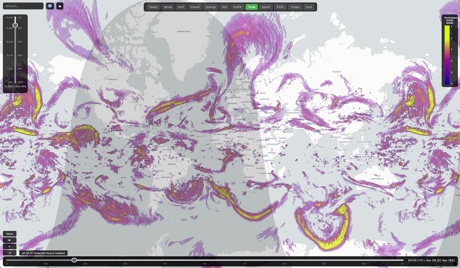
- Satellite imagery and weather radar on the live map
- Flight data export — download any flight as KMZ, CSV, or decoded Raw ADS-B (per-message ADS-B with signal strength)
- 3D cockpit view — fly along with any aircraft, live or in replay, with real terrain, weather, day/night and other traffic
- Flight Analysis Workbench — multi-aircraft analysis with takeoff, landing, ILS deviation and airprox plots, ACAS RA decoding, archived satellite and radar imagery, 3D playback, KMZ export and publishable read-only reports
- Run two concurrent sessions
Already have a Standard subscription? Sign in and you can upgrade it to Professional from your dashboard.
After Purchasing
- Your subscription activates automatically when PayPal confirms the payment (usually within 1 minute). You'll receive a confirmation email at the address registered with your PayPal account.
- Check your spam folder. The sender is sales@inside.net — whitelist if needed.
- The confirmation email contains your default API token. Paste it into your RealTraffic / PSXT / LiveTraffic application to connect.
- You can also view your subscription, generate or revoke tokens, and manage your account at your dashboard.
- If one hour after payment your subscription still doesn't appear in your dashboard, email sales@inside.net with your PayPal receipt and I'll activate it manually within 24 hours.
- Have a legacy license key? It still works — link it to your account to manage your subscription and tokens together.
Feature Comparison
| Feature | RT Account (free) | Standard | Pro |
|---|---|---|---|
| Livemap — live traffic | — | ✓ | ✓ |
| Livemap — historical traffic | — | — | ✓ (up to 14 days) |
| Active runway display | — | ✓ (live only) | ✓ (live + historical) |
| Airport info — runways, METAR/TAF, live schedules | — | ✓ | ✓ |
| Coverage map | ✓ | ✓ | ✓ |
| Weather overlay (wind, temp, pressure) | ✓ | ✓ | ✓ |
| Weather radar | — | — | ✓ |
| Flight sim traffic injection | — | ✓ (1 session) | ✓ (2 sessions) |
| Satellite imagery | — | — | ✓ |
| Flight data export — KMZ / CSV / Raw ADS-B | — | — | ✓ |
| ACAS resolution advisories & emergencies on the livemap | — | ✓ (live, last 24 h) | ✓ (14 days) |
| 3D cockpit view — live and replay | — | — | ✓ |
| Flight Analysis Workbench — incident analysis, 3D playback, published reports | — | — | ✓ |
Live Traffic
| Feature | RT Account (free) | Standard | Pro |
|---|---|---|---|
| Livemap — live traffic | — | ✓ | ✓ |
| Livemap — historical traffic | — | — | ✓ (up to 14 days) |
| Active runway display | — | ✓ (live only) | ✓ (live + historical) |
| Airport info — runways, METAR/TAF, live schedules | — | ✓ | ✓ |
| Coverage map | ✓ | ✓ | ✓ |
| Weather overlay (wind, temp, pressure) | ✓ | ✓ | ✓ |
| Weather radar | — | — | ✓ |
| Flight sim traffic injection | — | ✓ (1 session) | ✓ (2 sessions) |
| Satellite imagery | — | — | ✓ |
| Flight data export — KMZ / CSV / Raw ADS-B | — | — | ✓ |
| ACAS resolution advisories & emergencies on the livemap | — | ✓ (live, last 24 h) | ✓ (14 days) |
| 3D cockpit view — live and replay | — | — | ✓ |
| Flight Analysis Workbench — incident analysis, 3D playback, published reports | — | — | ✓ |
RealTraffic App installation
Full user documentation is available in the RealTraffic App manual.
Windows 10/11
Run the setup executable and follow the prompts. Both the installer and executable are cryptographically signed by Inside Systems Pty Ltd. RT requires a Java Runtime Environment (JRE).
macOS
Mount the DMG, drag the icon into Applications, and run it. On first launch, right-click and select Open, then acknowledge the security warning. If only the launcher splash appears, grant Full Disk Access to Java: System Preferences → Security & Privacy → Full Disk Access → add /usr/bin/java.
Linux
Unpack the tgz and run ./start.sh. A current JRE must be installed.
Configuration
- PSXT (P3D/MSFS) — preconfigured, no further setup needed
- LiveTraffic — only supported in direct mode
- Aerowinx PSX — open Instructor → Network/Main → Start the server, then Situation/Human/Traffic → Externally controlled
RealTraffic App Troubleshooting
The information below applies to the RealTraffic application only. If you are experiencing issues with PSXT or LiveTraffic, please use their support forums:
- PSXT (MSFS/P3D) — PSXT support forum on AVSIM
- LiveTraffic (X-Plane) — LiveTraffic support forum on X-Plane.org
If you want to reset all settings to default, delete the RealTraffic.ini file:
- Windows:
%AppData%\InsideSystems\(typicallyC:\Users\<username>\AppData\Roaming\InsideSystems\). To open it, press Win+R, type%AppData%\InsideSystemsand press Enter, or open a Command Prompt and runexplorer %AppData%\InsideSystems. TheAppDatafolder is hidden by default in File Explorer, so the%AppData%shortcut is the easiest way to find it. - macOS:
~/Documents/.InsideSystems - Linux:
~/.InsideSystems
Debug logging
To enable debug logging, create a directory (not a file) named debugN in the same directory as RealTraffic.ini, where N is a bitmask selecting which categories to log:
debug1— General (errors, startup, license)debug7— General + Config + Network connectionsdebug15— General + Config + Network connections + Network datadebug127— Everything except NIC enumeration and runloop timingdebug511— Everything (very verbose)
Restart RT after creating the directory. A timestamped log file will be created in the settings directory. Reproduce the issue, then send the log file to support@inside.net. Delete the debugN directory when done.